Controller Specs Are a Fantasy: The Real Drift and Jitter Problems Wrecking Your Spatial App
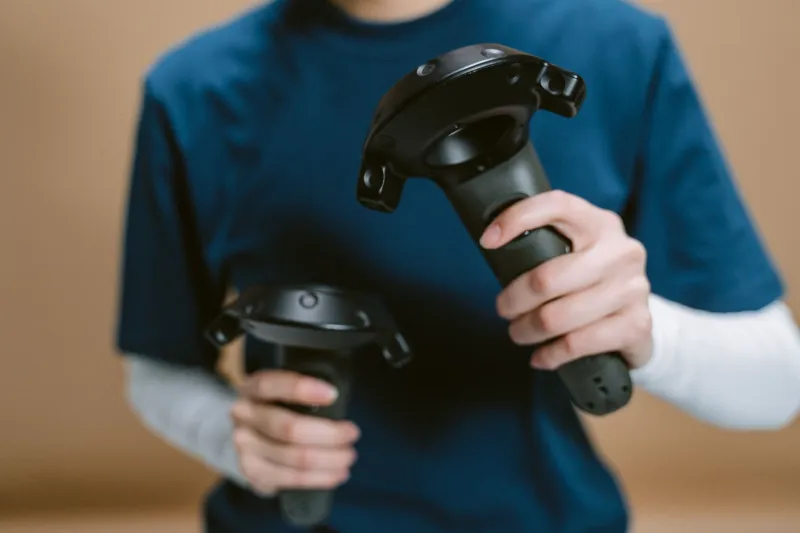
You've profiled your render loop. You've trimmed your WebXR event handlers. You've squeezed every last millisecond out of your frame budget. And still — still — users are complaining that pointer interactions feel off, that objects drift when nobody's touching them, that the whole experience has this subtle wrongness they can't quite name.
Here's the uncomfortable truth most spatial web developers don't want to sit with: the problem might not be your code at all. It might be the controller sitting in your user's hand, lying to your app about where it actually is.
The Spec Sheet Is a Best-Case Scenario
Every major motion controller manufacturer publishes precision specs. You'll see numbers like "±0.1mm positional accuracy" or "sub-degree rotational tracking" on product pages and developer documentation. Those numbers aren't fake, exactly — but they represent lab conditions that bear almost no resemblance to the messy, reflective, electromagnetically noisy environments where real users actually use your app.
Controllers that use electromagnetic or optical inside-out tracking degrade in performance the moment you introduce fluorescent lighting, reflective surfaces, cluttered backgrounds, or even a user wearing a watch that bounces IR light. Bluetooth-based input adds its own layer of latency variance depending on nearby 2.4GHz interference — and in a typical American home or office, that interference is everywhere. Your router, your microwave, your neighbor's router, all of it is quietly corrupting the pristine accuracy your hardware was supposedly rated for.
The result is drift and jitter that your app has no reliable way to distinguish from intentional movement.
What Drift Actually Looks Like in the Wild
Drift is the slow, unasked-for migration of a tracked object's reported position away from its real-world location. In a spatial web app, this shows up as a grabbed object that slowly slides out of the user's apparent grip, a UI panel that creeps a few centimeters to the left over thirty seconds, or a pointer ray that stops lining up with where the user is actually pointing.
Jitter is the opposite problem — rapid, high-frequency noise in position or rotation data that makes objects appear to vibrate or shimmer even when the controller is physically still. This one is especially insidious because users interpret it as a performance problem. They assume your app is poorly built, even if your frame rate is locked at 90fps.
Both problems are real, both are common, and neither one shows up in a standard benchmark or Lighthouse audit.
Why Developers Miss It
There are a few reasons this category of bug goes undetected for so long.
First, most developers test on a single device in a controlled environment — their desk, their office, their living room. That environment has been implicitly optimized for their hardware without them realizing it. No unusual lighting, familiar Bluetooth congestion levels, known tracking conditions.
Second, WebXR's XRPose and XRInputSource APIs don't expose raw tracking confidence in a way that's easy to act on. The gripSpace and targetRaySpace data you're reading looks perfectly valid even when the underlying tracking is degraded. There's no built-in "hey, this data is garbage right now" flag that fires reliably across all hardware implementations.
Third, users rarely articulate the problem clearly. They don't say "I'm experiencing positional drift." They say "it just feels weird" or "the controls are broken" — and then they leave.
Practical Detection Strategies
You can't fix what you can't measure, so the first step is building visibility into what your controllers are actually reporting.
Log velocity when velocity should be zero. If a controller reports non-trivial positional velocity while the user isn't actively moving — something you can infer through input state and session context — you're likely looking at drift or jitter. Accumulate that data over a session and you'll quickly see which devices and environments are the worst offenders.
Track position delta variance over short windows. Jitter produces high-frequency variance in position deltas even when the overall position is stable. A rolling standard deviation of your XRPose position values over the last 10–15 frames will surface jitter that's invisible to the naked eye but completely obvious in the data.
Use the XRFrame timestamp to detect latency spikes. Inconsistent frame delivery often accompanies degraded tracking. If your frame timestamps are irregular, your pose data is probably unreliable in that same window.
Mitigation Without Buying New Hardware
Once you've got visibility, here's how to actually handle the problem in your app — without telling your users to go buy better controllers.
Apply a low-pass filter to pose data. This is the most common approach and for good reason. Smoothing position and rotation data over a small rolling window kills jitter without introducing noticeable lag for intentional movements. Libraries like [three.js](https://en.wikipedia.org/wiki/Three.js) have utilities that make this straightforward, and you can tune the filter coefficient based on the velocity of the input — aggressive smoothing when the controller is still, lighter smoothing when it's moving fast.
Dead zones are your friend. Implementing a minimum movement threshold before you update object positions eliminates the subtle drift that makes grabbed objects feel alive when they should be inert. Yes, this is the same concept from analog stick dead zones on a gamepad, and yes, it works just as well in 3D space.
Snap-to-rest logic for idle states. If a user hasn't meaningfully moved their controller in a defined window and isn't actively pressing anything, consider snapping held objects back to their last confirmed intentional position. This prevents the slow drift accumulation that becomes obvious after thirty seconds of normal use.
Separate your visual position from your logical position. Render the visual representation of a held object using smoothed pose data, but store and compute interactions against a logically stable position that only updates on confirmed intentional movement. This gives users the visual fluidity of smooth tracking without the gameplay consequences of drift.
Set Expectations With Your Users
None of these mitigations are perfect. There will be environments where tracking is just bad, and no amount of software gymnastics will fully compensate for hardware that's operating outside its design parameters.
That means it's worth considering what your onboarding flow communicates. Prompting users to check their environment — clear a tracking area, reduce clutter, step away from obvious interference sources — isn't just UX boilerplate. It's actually useful guidance that can meaningfully improve the experience before a single line of your mitigation code even runs.
The Bottom Line
The spatial web is only as good as the input data feeding it. When that data is silently corrupted by hardware limitations your users don't know exist and your spec sheet didn't warn you about, the experience falls apart in ways that are hard to diagnose and easy to misattribute.
Building detection and mitigation into your spatial app from day one isn't over-engineering — it's table stakes for shipping something that actually works in the real world, not just in your dev environment. The controller in your user's hand is telling your app a story. Make sure you're not just taking it at its word.